
 Arabic
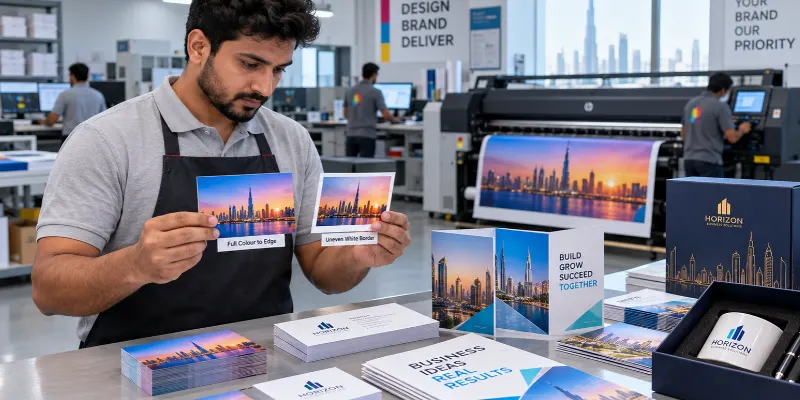
Cut a stack of printed cards by hand, and you will notice something quickly. The blade never lands in exactly the same spot twice. So, what is bleeding in printing? It is the extra strip of artwork that runs past the final edge of your design, so a slightly off cut still leaves colour right to the border instead of a thin white line. This guide covers how it works, how much to add, and how to set up a file without guessing.
Print Bleed Meaning in Plain Words
Commercial printers rarely print one piece at a time at its final size. Designs usually go onto a larger sheet, which is then trimmed down with a cutter. Cutting is a mechanical step, so small shifts happen from one sheet to the next.
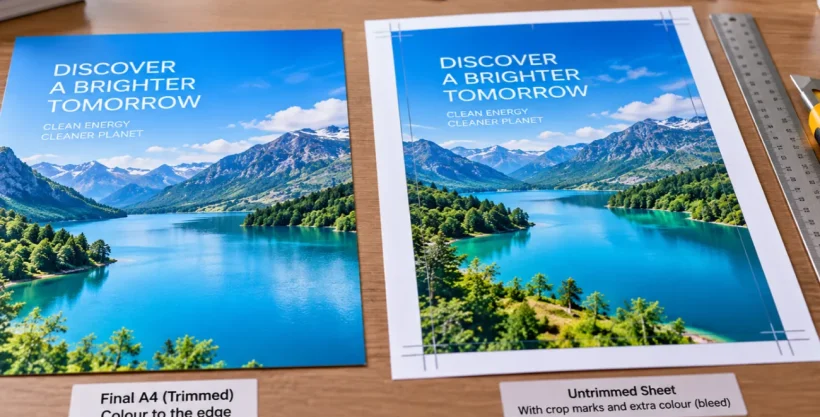
Bleed is the cushion for that shift. Your background colour, photo or pattern extends beyond the trim line, and the blade slices through the extra, leaving ink all the way to the edge. Skip it, and a cut that drifts by a hair can expose a sliver of bare paper. That is the print bleed meaning in practice: a buffer built into the file, never visible in the finished piece.
Many printers ask for about 3 mm of bleed on each side. Large banners and thick stocks sometimes call for more, so confirm the figure with your printer before you start. This guide shares general information only, and exact numbers depend on the printer, the paper and the finishing.
What Is Bleeding in Printing Compared With Trim and Safe Margin?
Bleed and trim in printing work as a pair, and a third line sits inside them. Every print-ready file carries three boundaries:
- Bleed edge: the outer limit of your artwork, usually 3 mm beyond the final size.
- Trim line: the spot where the blade is meant to cut, which marks the finished size.
- Safe margin: an inner boundary where text, logos and phone numbers should stay, often 3 to 5 mm inside the trim line.
The printing safe margin protects your words the same way bleed protects your colour.
A quick example helps. An A4 flyer measures 210 by 297 mm. Add 3 mm of bleed to every side, and the file becomes 216 by 303 mm. That outer band is what the blade removes. Keep the headline and contact details inside the safe margin, and a small cutting shift will not touch them.
Setting Up Bleed in Your File
Most layout tools have a bleed field in the document settings. A reliable order looks like this
- Ask the printer for their bleed and margin numbers before opening any design software.
- Set the document to the finished trim size, then enter the bleed value.
- Pull backgrounds, photos and border colours out to the outer bleed edge.
- Move text, logos and contact details inside the safe margin.
- Export a print PDF with the bleed included, and add crop marks if your printer asks for them.
Mistakes Beginners Make
Stretching a small image into the bleed area is a common one, and it blurs the edge. Print files usually need more image resolution than screen graphics, and 300 dpi is a widely used target. Start with a photo that has enough pixels to cover the extra band.
Thin borders near the trim line cause trouble too. When the cut drifts, one side of the border looks thicker than the other, and no amount of bleed fixes that. Keep borders well inside the safe margin, or drop them.
Then there is the hidden white box. Some designs carry a white shape the exact size of the page, and it quietly stops artwork from reaching the bleed edge. Check your layers. Also, scaling the whole design up to “add” bleed shifts everything, text included, so extend the background instead.
Does Bleed Apply Beyond Paper?
Ask what is bleeding in printing for a mug or a pen, and the answer shifts with the method. Sheets get cut, so bleed protects the edge. Objects such as mugs, pens or acrylic signs usually print inside a fixed area, so the useful question becomes where that print area ends. Printing methods like UV printing and pad printing work within set areas, and screen printing has its own file needs, which digital printing vs screen printing explains in more detail.
A mockup stage, where artwork is placed on the actual product before production, is a practical way to catch edge problems early.
Final Thoughts
Bleed is a small setting with a visible payoff. Extend the artwork past the trim line, hold text inside the safe margin, and confirm the numbers with your printer before you export. Al Fajer Advertising Gifts Trading LLC, a Sharjah-based printing and branding company, lists UV printing, commercial screen printing and pad printing among its services, a reminder that file needs differ by method. Before your next file goes out, have you looked at what sits along its outer edge?